
Unreal Engine 5 is a beautiful renderer that can chew through cinematic-quality assets, but its art pipeline assumes you already have those assets. AI generation flips that assumption — you can produce a textured, game-ready mesh from a single photo in about thirty seconds. The trick is getting that mesh into UE5 cleanly so Lumen, Nanite, and Chaos can actually do their jobs.
This guide walks through the full import path for AI-generated GLB models — from drag-and-drop to a working vehicle in a UE5 scene.
Importing GLB Into UE5
UE5 doesn't accept GLB natively in the FBX import dialog, but there are two clean routes:
- glTF for Unreal plugin — Epic's official plugin (free on the Marketplace). Enable it in Plugins, restart, then drag your GLB straight into the Content Browser. PBR textures hook up automatically.
- Datasmith — better for batches and CAD-style assets. Use the Datasmith glTF importer for preserving hierarchy and metadata.
For most workflows the glTF plugin is the right answer. If your model came from HiGen3D, the file is already glTF 2.0 compliant with the texture atlas embedded.
Materials: Mapping PBR Textures to UE5
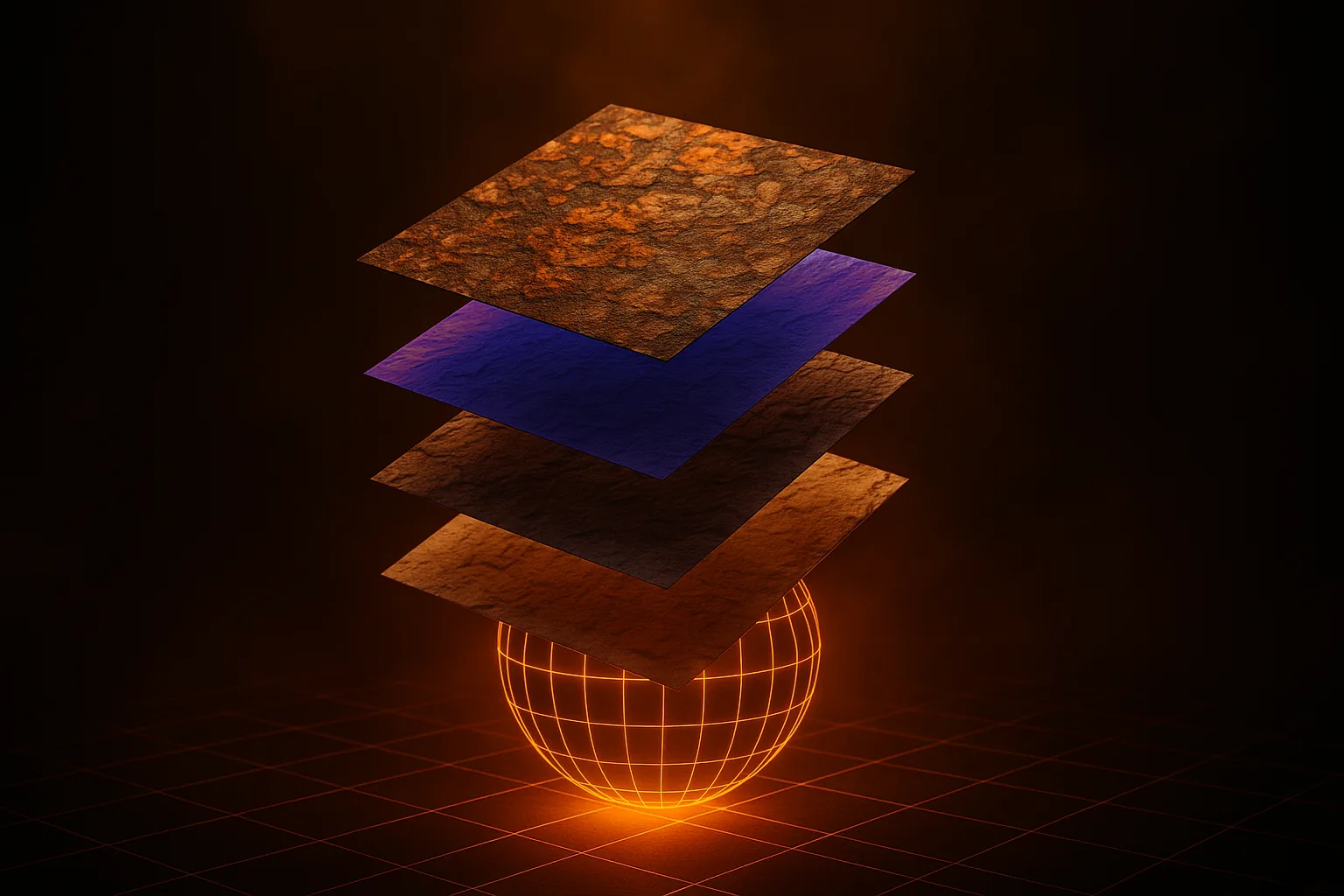
AI generators output the standard PBR channel set: albedo, normal, roughness, and metallic. UE5 imports these as a basic Material instance. For production work, build one master Material with parameters (Base Color, Roughness, Metallic, Normal) and turn each import into a Material Instance.
One gotcha: AI-generated normal maps are usually OpenGL convention (Y+). UE5 expects DirectX (Y-). Flip the green channel inside the Material — a single OneMinus node on the G component does it. If your car looks like it's lit from below, this is why. See our PBR textures guide for the full channel breakdown.
Lumen + Nanite: Which AI Assets Are Friendly
Nanite loves dense meshes with consistent triangle density. The good news: AI-generated 3D meshes from modern pipelines (TRELLIS, Hunyuan3D) tend to be fairly uniform after voxelization. Enable Nanite on the static mesh import settings and check the triangle count — anything above 50k is a great Nanite candidate.
Lumen handles the lighting and reflections. AI-generated PBR maps work out of the box. For cars specifically, bump Lumen Surface Cache Resolution on the mesh — the metallic body benefits from extra texel density. Compare options at TRELLIS vs Hunyuan vs Stable Fast 3D.
Collision Setup
UE5 gives you three useful collision strategies for AI meshes:
- Simple collision (auto-convex) — right-click the mesh, Collision → Auto Convex Collision. Set Hull Count to 8 and Max Hull Verts to 16 for vehicles. Fast, cheap, perfect for chassis.
- Use Complex As Simple — the mesh itself is the collider. Use this for static scenery only — never for moving rigid bodies.
- Convex decomposition — for irregular props, increase Hull Count to 32+ until the visualization wraps tightly.
Vehicle Workflow With Chaos
If your AI model came with separated wheels (as HiGen3D outputs for cars), you can wire it into ChaosVehicle with almost no manual work:
- Import the GLB — confirm hierarchy: Body, Wheel_FL, Wheel_FR, Wheel_RL, Wheel_RR
- Create a Skeletal Mesh from the rigid hierarchy (Skeletal Mesh from Static Mesh tool, or rig manually with one bone per wheel)
- Create a Vehicle Animation Blueprint and bind the wheel bones to the Chaos wheel slots
- Set up the Chaos Wheeled Vehicle Movement Component — wheel radius, suspension, torque curves
- Tune mass (typical sedan: ~1500 kg) and center of mass (lower than geometric center for stability)
The wheel-separation step is the part that usually eats hours in Blender. AI does it for free. Same workflow we cover for the other engine in 3D car models for Unity with AI.
Performance
For racing-style scenes with AI car assets, three settings move the needle most:
- Virtual Shadow Maps — enable in Project Settings. They handle the high frequency detail on car bodies beautifully and scale better than CSM.
- Screen-Space Reflections — leave on for ground reflections under cars; combine with Lumen Reflections for the metallic body
- Nanite + LOD fallback — Nanite handles LOD itself, but keep a manual LOD0 at ~50k triangles as fallback for platforms where Nanite is disabled (mobile, older hardware). For mobile-first workflows see optimize 3D models for mobile games.
Common Pitfalls
- Scale — UE5 is centimeter-unit. GLB ships in meters. Multiply import scale by 100 or your car will be the size of a coin.
- Y-up vs Z-up — glTF is Y-up, UE5 is Z-up. The plugin handles this automatically — but if you exported via a custom path, check rotation in the import dialog.
- Double-sided materials — AI meshes occasionally have thin shells. Enable Two Sided on those Material instances rather than fixing geometry.
Quick Win: Cars From Photos for Racing Prototypes
For a racing-game prototype, the fastest path is photo → AI → UE5: snap a 3/4 angle of any car, generate, drop into your project, attach Chaos. You can have a drivable prototype in an evening. Browse what others are making in the HiGen3D community, then generate your own. If you want the full picture of the indie pipeline, read the AI 3D asset pipeline for indie devs, or check the pricing tiers when you're ready to scale up.
UE5 is a forgiving target for AI assets once you know which knobs to turn. The renderer is generous; the import path just needs respect.