
Open any AI-generated GLB in a viewer and you'll see four texture slots: albedo, normal, roughness, metallic. If you've never worked in 3D before, those names don't mean much. If you have, you probably know the workflow but maybe not why it became the universal standard. Either way, this guide explains what PBR is, how AI generators produce it, and how to use the result.
What PBR Actually Is
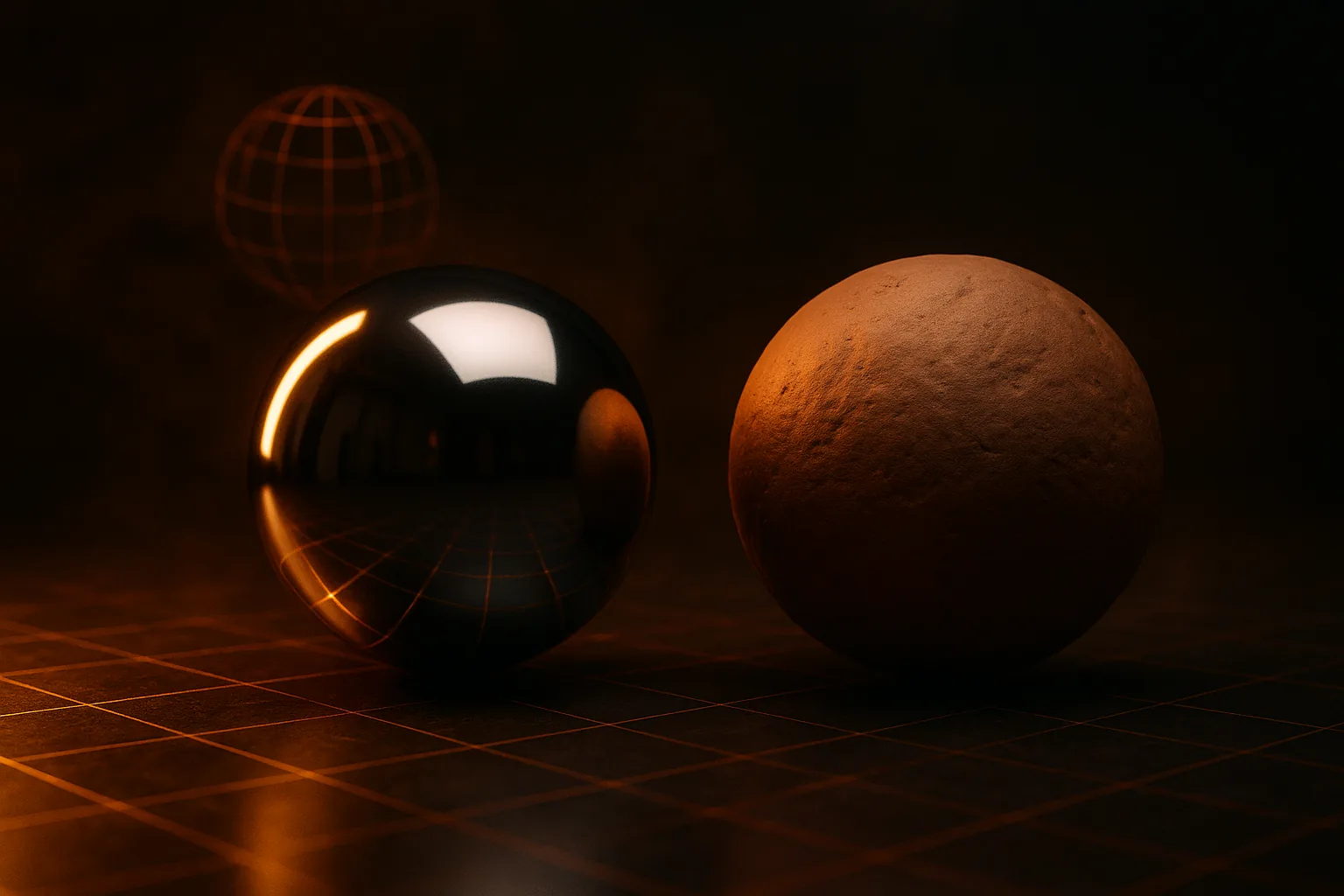
PBR stands for Physically Based Rendering. It's a shading model that approximates how light really interacts with surfaces — energy conservation, microfacet roughness, Fresnel reflection. The point isn't that it's photoreal; the point is that the same material values look right under any lighting condition, in any engine.
Before PBR, every engine had its own ad-hoc lighting math — Phong, Blinn-Phong, Lambert plus a specular hack. A texture that looked good in 3ds Max would look wrong in Unity, then wrong again in Unreal. PBR fixed that by standardizing the shader. A PBR material authored once works in Unity URP, Unreal, Blender's Eevee, three.js, glTF viewers — all of them.
The Four Maps in the MetalRough Workflow
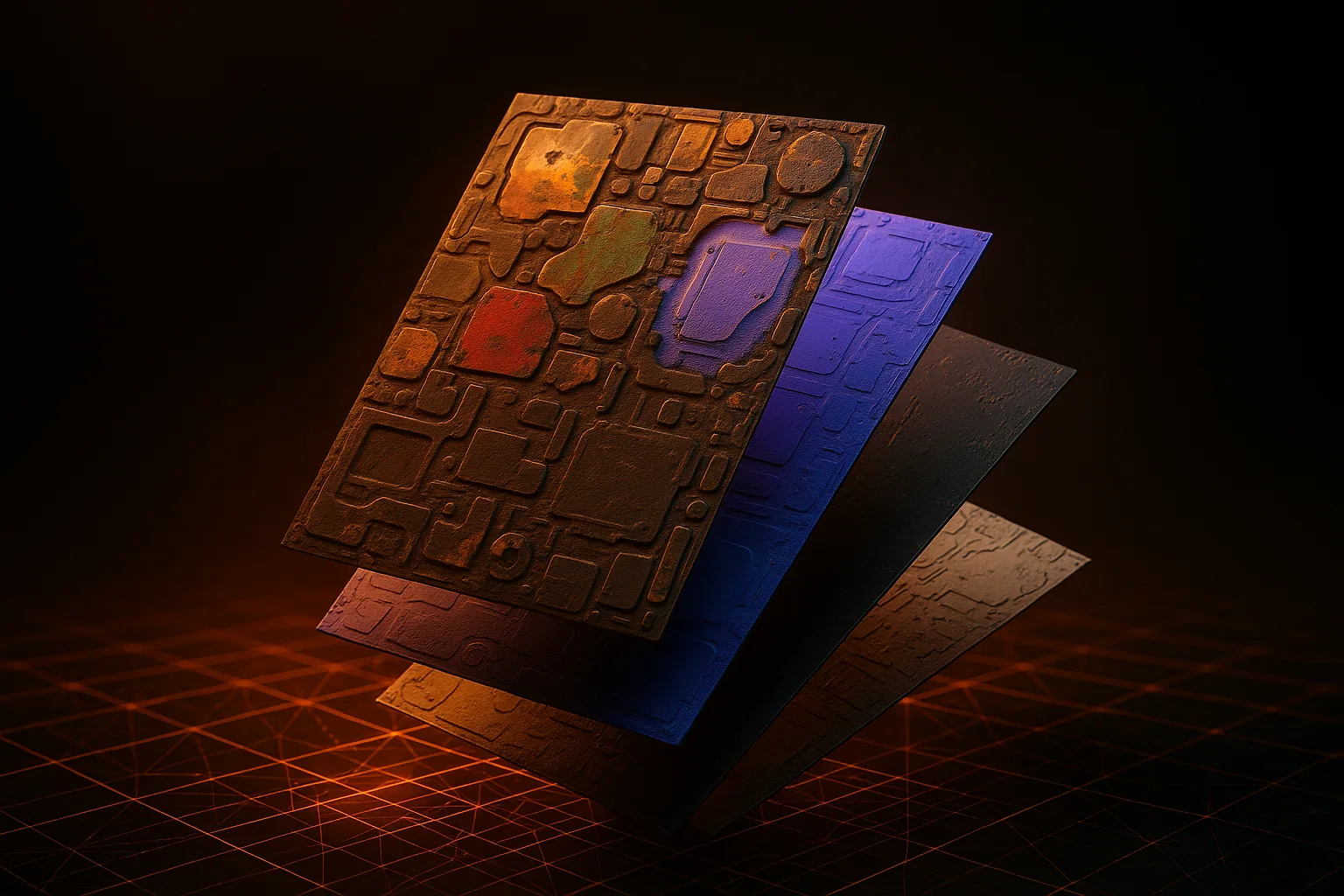
The MetalRough workflow (the one glTF and almost every modern engine uses) has four core textures:
- Albedo (base color) — the pure color of the surface with no lighting, no shadows, no highlights. Sometimes called "diffuse," but PBR albedo is stricter: no baked-in light.
- Normal — a tangent-space RGB map that fakes surface detail. Bumps, scratches, panel lines — anything sub-millimeter that would be wasteful to model as geometry.
- Roughness — a grayscale map. Black is mirror-smooth, white is chalk-rough. This controls how blurry reflections are.
- Metallic — also grayscale, but used as a binary in practice. Black for dielectrics (plastic, wood, skin, paint). White for raw metal (chrome, gold, brushed aluminum).
You don't strictly need all four — a wood crate has no metallic — but the slots exist so the shader can sample them uniformly.
SpecGloss vs MetalRough
You may run into an older PBR variant called SpecularGlossiness. It uses a specular RGB map and a glossiness map instead of metallic + roughness. It can represent some materials more directly (tinted metals are easier) but it's less artist-friendly and the glTF 2.0 core spec defaults to MetalRough. Almost every AI generator outputs MetalRough. If a tool exports SpecGloss, convert it in Substance Painter or use a glTF extension converter.
How AI Generators Bake PBR Maps from One Photo
This is the magic part. A latent diffusion model is trained on millions of 3D assets with known PBR textures. Given one input image, it:
- Reconstructs the 3D mesh (TRELLIS, Hunyuan, Stable Fast 3D — see our comparison).
- Generates a UV unwrap — usually atlas-packed, 1024 or 2048 across.
- Bakes four separate texture passes by re-running the diffusion model conditioned on the geometry, asking for albedo, normal, roughness, and metallic individually.
- Embeds all four into the GLB so it ships as a single file.
The key trick is separating lighting from albedo. A good generator infers the lighting in your input photo and pulls it out so the albedo map is neutral. A bad one bakes the shadows in and you get a model that always looks like it's lit from the upper-left.
Reading PBR Maps in Your Engine
Unity (URP/HDRP)
Drop the GLB into Assets/, expand it, find the material. URP's Lit shader auto-binds Albedo → Base Map, Normal → Normal Map, and packs Metallic + Roughness into the Metallic-Smoothness channel (note: Unity inverts roughness to smoothness, but the glTF importer handles this).
Unreal Engine 5
Right-click the GLB in the Content Browser → Import. Open the auto-generated Material and you'll see Base Color, Metallic, Roughness, and Normal pins already wired. Same shader math as Unity, same authoring rules.
Blender (Principled BSDF)
Import the GLB. Each material is a Principled BSDF node with the four maps connected to Base Color, Metallic, Roughness, and Normal (via a Normal Map node). This is the cleanest place to inspect what the AI actually produced — see our Blender import guide.
Editing AI-Generated Maps
AI textures are usually good but rarely perfect. Common touch-ups:
- Substance Painter — drag the GLB in, paint corrections on a new layer per channel. Best for adding wear, dirt, decals.
- Photoshop — open the albedo or roughness PNG separately, fix obvious mistakes, save back. Works fine for color shifts and stain removal.
- Blender — for quick tweaks you can use texture painting directly on the Principled BSDF inputs.
Common AI Artifacts
Three failure modes show up repeatedly:
- Blown-out metallic — the model decides everything reflective is metal. Plastic-look car bumpers come out chrome. Fix: paint the metallic channel black where it shouldn't be.
- Soft normals — bake fidelity loses fine detail. Add a tiling detail-normal in your engine.
- Baked-in lighting — albedo has shadows from the source photo. Hardest to fix; sometimes easier to regenerate with a more evenly-lit input. See the photo-to-3D capture guide.
HiGen3D's PBR Output
Every GLB from HiGen3D's generator ships with albedo, normal, roughness, and metallic embedded — MetalRough workflow, glTF 2.0 standard, ready for Unity, Unreal, Blender, or any web viewer. For vehicles, the textures are split per-mesh so wheels and chassis have their own materials. For deeper pipeline workflow, see our indie pipeline guide or the Unreal integration walkthrough.
Curious how the maps look in practice? Browse the community gallery — every model there was generated from a single photo, with PBR maps baked automatically. Or pick a plan on the pricing page and try it yourself.