
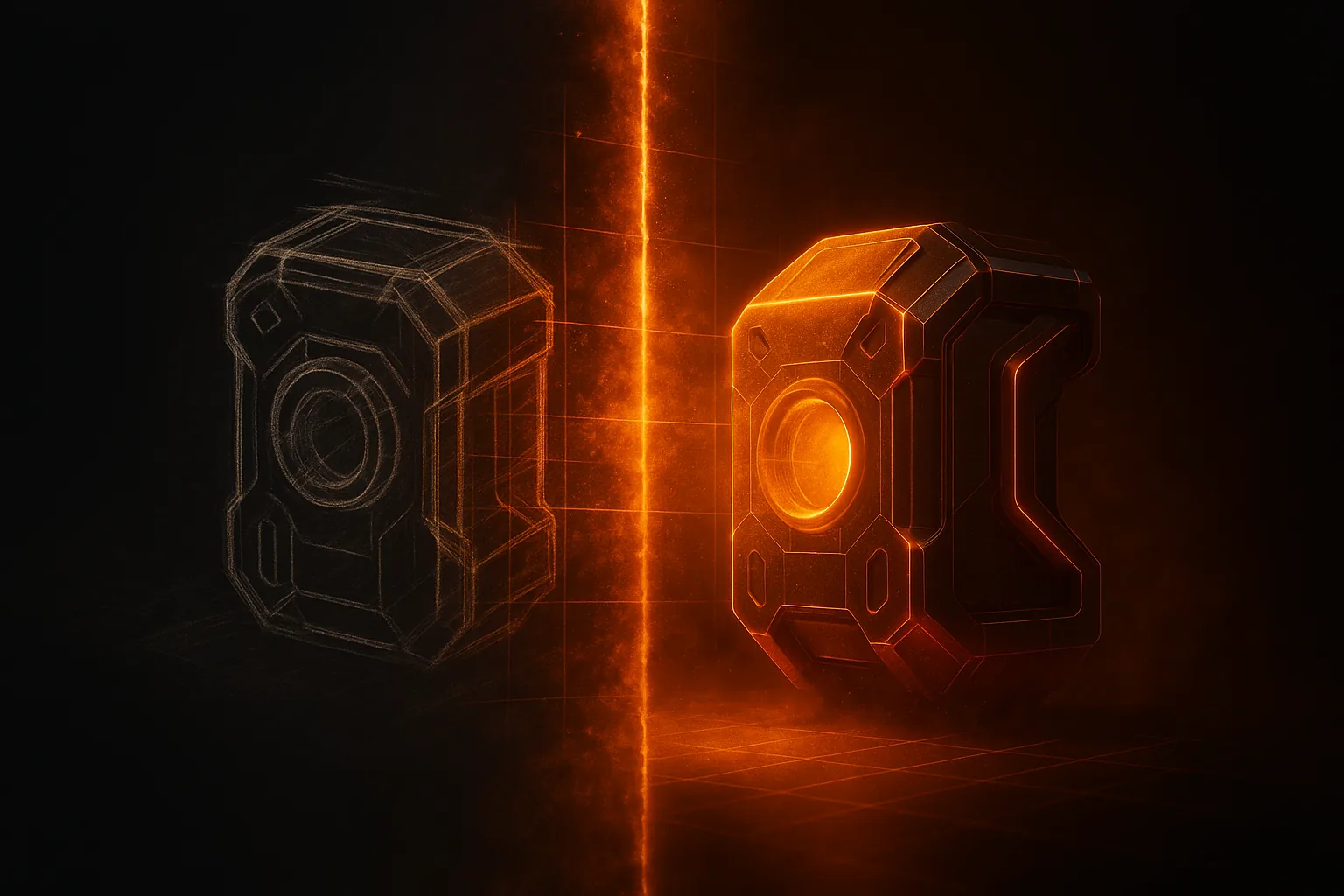
Concept artists draw. Game developers need 3D. For decades the bridge between those two worlds was a modeler with a tablet and a lot of patience. AI is starting to collapse that gap — you can now go from a rough sketch to a usable 3D model in a few minutes.
It is harder than photo-to-3D, though. A pencil drawing carries less information than a photograph: no lighting, no parallax, often no clear silhouette behind the lines. This guide walks through the workflow that actually works.
Why Direct Sketch-to-3D Is Harder Than Photo-to-3D
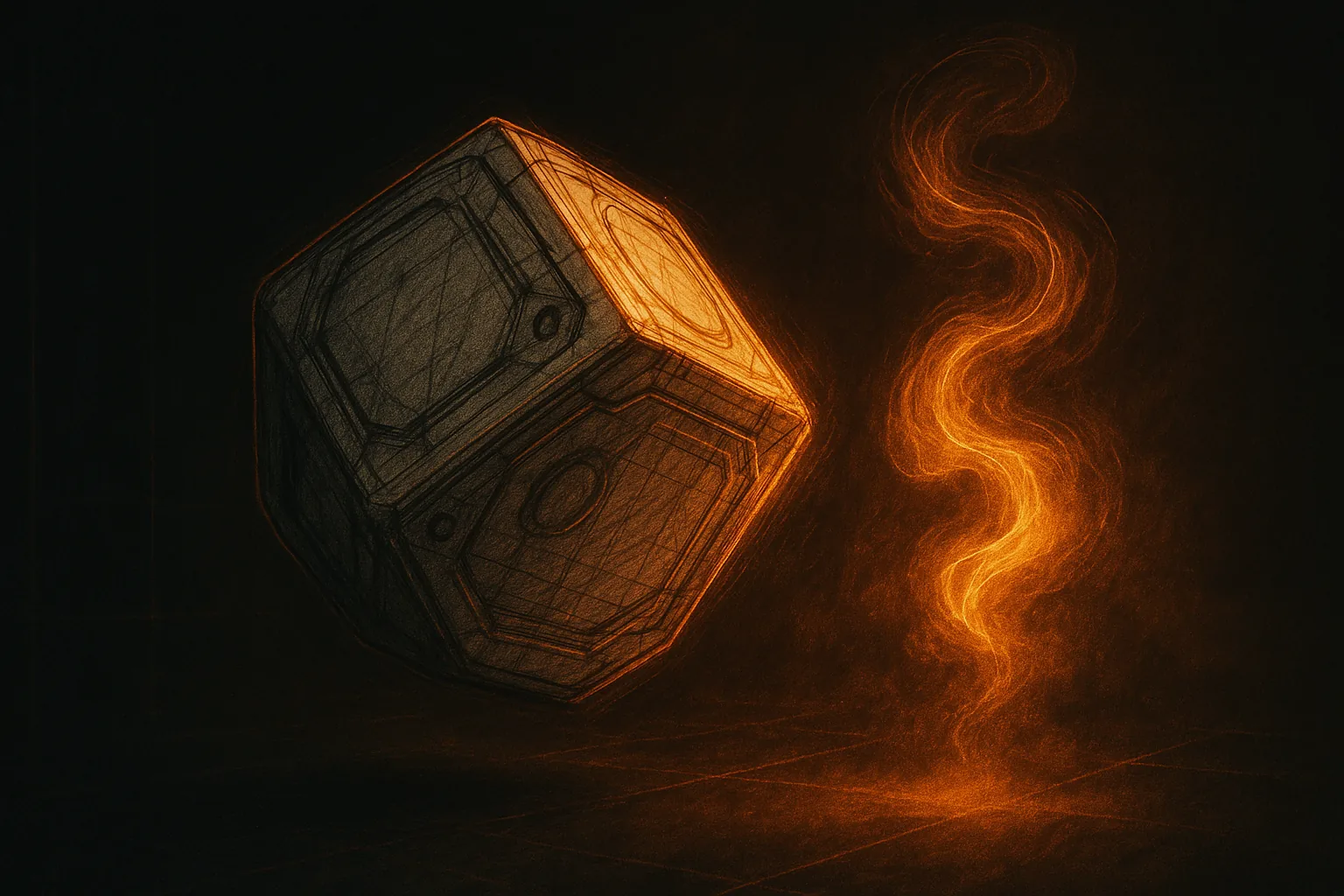
Modern image-to-3D models like TRELLIS or Hunyuan3D were trained mostly on rendered images and photographs. They expect solid shading, perspective cues, and clear material boundaries. A line drawing has none of that. Feed a flat pencil sketch into any of the popular image-to-3D models and you usually get a mushy, half-formed mesh — the network has no idea where the surface actually is.
The fix is to give the network something closer to what it was trained on. That means turning your sketch into a rendered image first.
The Two-Step Pipeline (Recommended)
The reliable workflow has two stages:
- Sketch to rendered image — pass the line art through an image-to-image model like Stable Diffusion with ControlNet, or Imagen, to produce a shaded, photo-like reference.
- Rendered image to 3D — feed that rendered image into a normal image-to-3D pipeline.
This works because each step plays to a model's strengths. ControlNet's scribble or lineart preprocessor was literally designed to convert drawings into photorealistic outputs while preserving the silhouette. The 3D model then receives an image it can actually understand.
Step 1 in Practice
Load your sketch into a Stable Diffusion UI (Automatic1111, ComfyUI, Forge — pick your favorite). Enable a ControlNet unit with the lineart or canny preprocessor. Prompt it for the look you want: "3D render, studio lighting, neutral grey background, octane". Keep the prompt simple — the silhouette is doing most of the work.
Step 2 in Practice
Take the rendered output and drop it into HiGen3D's generator. From here the process is identical to converting any photo to 3D: pick quality mode, wait ~30 seconds, download the GLB.
Best Practices for Sketches Going Into AI
- Clear silhouette — the outermost outline matters more than internal detail. If a human can't tell what it is from the silhouette alone, the AI can't either.
- Single object, plain background — white paper, no shading clutter, no other shapes in frame.
- Good contrast — black ink on white paper beats faint pencil. Scan or photograph in even light.
- Three-quarter view — pure front or side views give the AI nothing to triangulate from. Angle the camera 30-45 degrees off-axis.
- Light shading helps — even a quick value pass with a soft pencil gives the model depth cues.
One-Step Alternatives
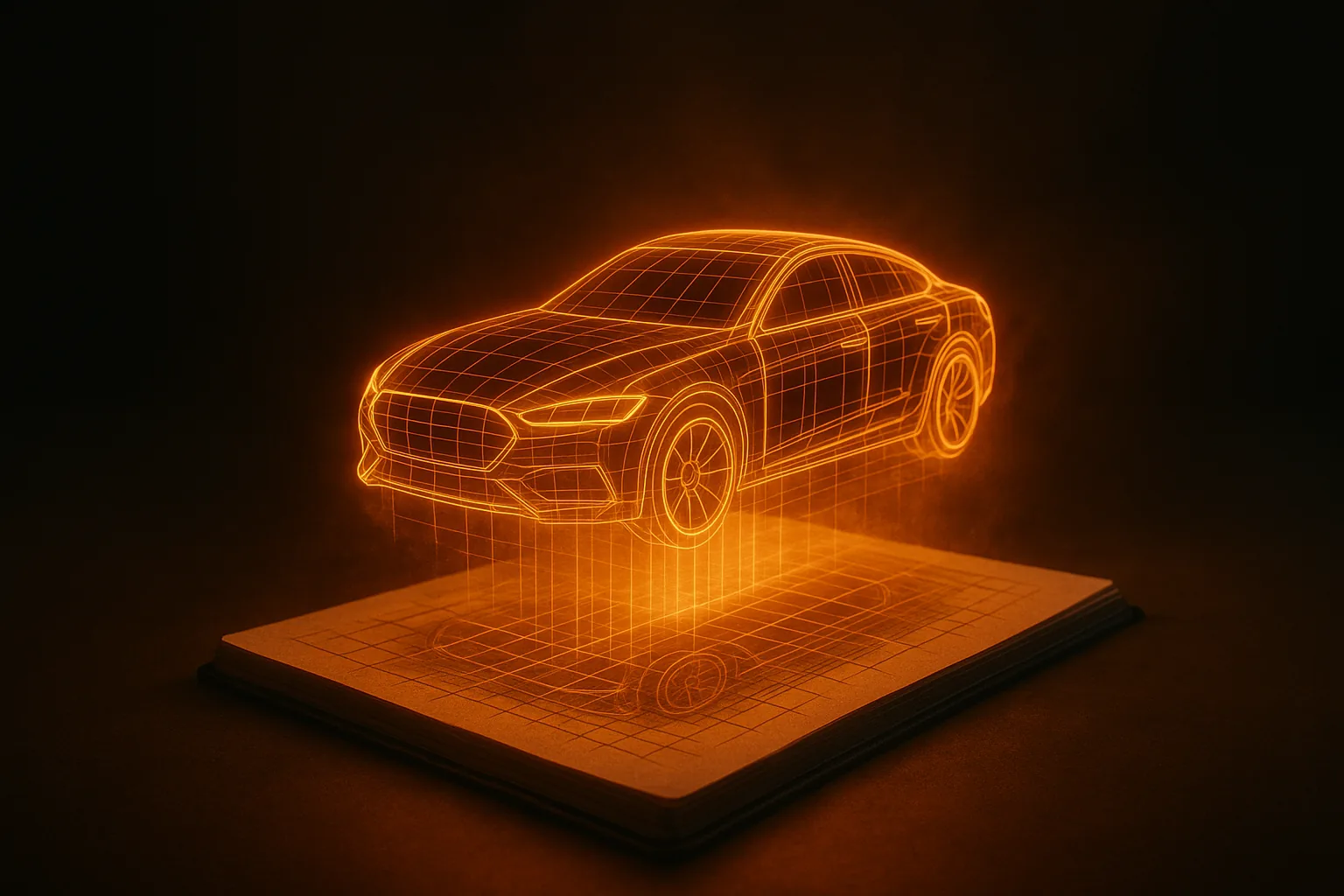
A few newer models accept line art directly. They are not yet as robust as the two-step pipeline, but worth trying when you want a quick result and the subject is simple. For vehicles, props, and other hard-surface objects with strong silhouettes, single-pass sketch-to-3D often gets you 70% of the way there. Organic shapes — characters, creatures, anything with fur or cloth — still benefit from the rendered-image intermediate.
Examples by Use Case
Character concepts — three-quarter pose, basic value rendering, simple costume. Two-step pipeline. Expect to redo the face in your DCC of choice; the AI will get the body and outfit close but faces from sketches are still rough.
Vehicle designs — vehicles are where AI 3D shines. A side-view sketch plus a three-quarter shot, two-step pipeline, and you have a drivable shape. See our guide for getting cars into Unity.
Props and weapons — usually the easiest category. Crisp silhouette, simple materials, single-pass often works.
Cleanup Tips for Sketch-Derived Geometry
Sketch-sourced meshes need a bit more cleanup than photo-sourced ones. Common issues:
- Asymmetry — even a "symmetric" hand drawing isn't truly symmetric. Use a mirror modifier in Blender on the cleaner half if symmetry matters.
- Floating details — small features the AI hallucinated from ambiguous lines. Delete them or merge by distance.
- Texture seams — the AI bakes textures from a single view, so the back can look muddy. A quick retexture pass with PBR materials fixes most cases.
For getting the GLB into your tools, see our Blender import guide.
Who This Is For
Concept artists who want to see their designs in 3D without learning Maya. Indie game devs who design on paper and need playable assets fast — there is a whole indie asset pipeline guide covering this. Animation studios doing previs. Anyone with a sketchbook full of ideas and no time to model them by hand.
Try the generator with a sketch you already have, or browse the community gallery to see what others have produced. Volume discounts on the pricing page if you're running through a backlog of concepts.