

If you own an iPhone, you already carry a capable 3D capture device — but probably not in the way Apple marketed it. The LiDAR sensor on Pro models gets a lot of attention, and apps like Polycam built their reputation on it. The thing is, you don't actually need LiDAR anymore. A single photo from any modern iPhone is enough to generate a textured, game-ready 3D model.
This guide walks through the iPhone-only workflow: shoot, upload, download, preview in AR, share. No laptop required.
LiDAR Scanning vs. Single-Photo AI
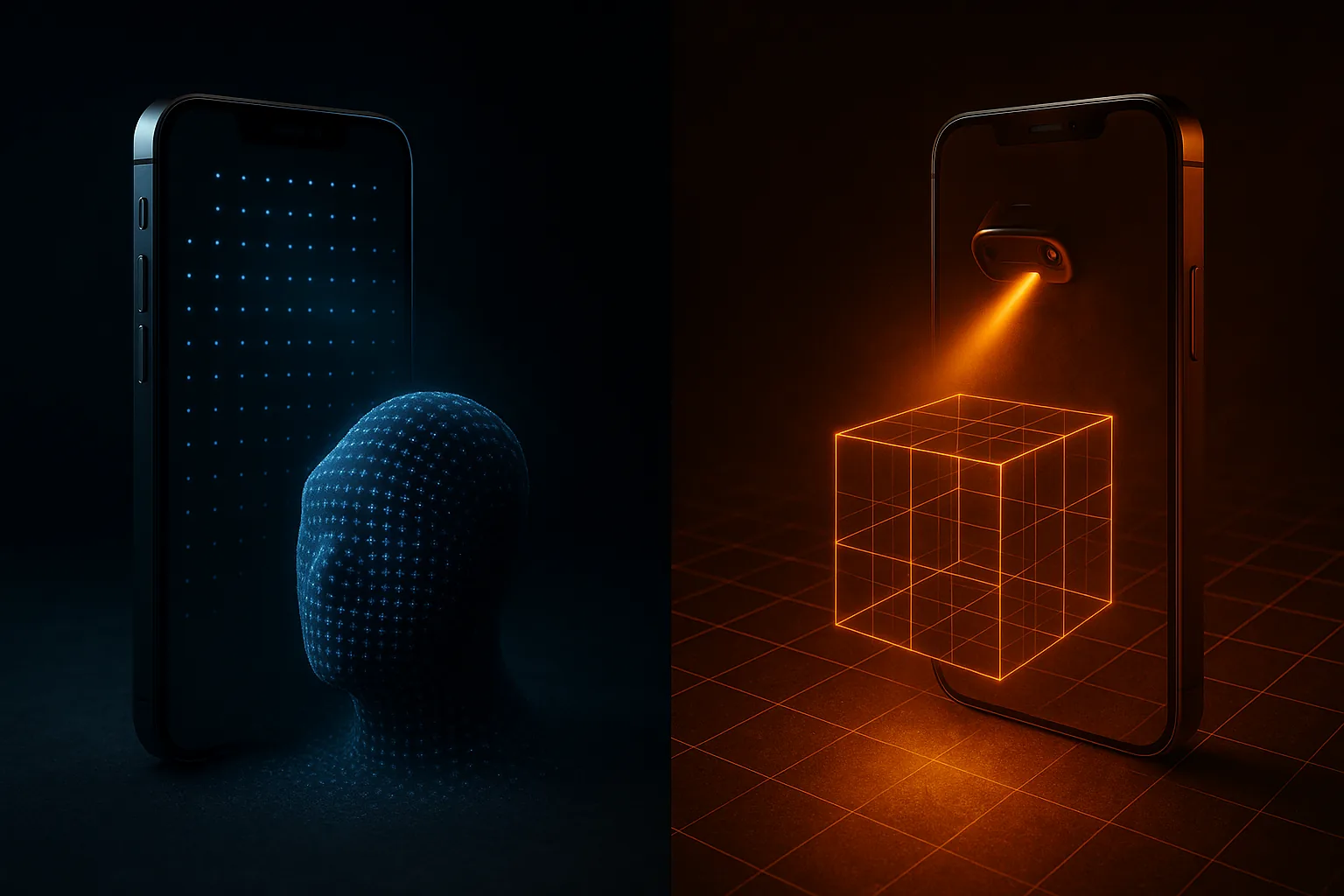
LiDAR-based apps work by sweeping the sensor around an object, building a point cloud from real depth measurements, then meshing it. The result is metrically accurate but the workflow is finicky — you walk laps around the subject, the app sometimes loses tracking, and reflective or thin surfaces confuse the sensor.
AI 3D generation skips the sensor entirely. You feed it one ordinary photo. The model infers depth, shape, and the unseen back side from priors learned across millions of real objects. It's faster, doesn't care which iPhone you own, and produces clean meshes that drop straight into a game engine. For a deeper comparison see AI 3D vs. photogrammetry.
Why Modern AI Doesn't Need Depth Hardware
Old photogrammetry needed many overlapping photos because it had to triangulate every point. Modern generative 3D models work differently: they've internalized what cars, chairs, sneakers, and dragons typically look like in three dimensions. Given a 2D view, they can hallucinate a plausible — and usually correct — full geometry. The LiDAR sensor would only confirm what the model already knows.
iPhone Shooting Tips for AI 3D

The photo quality matters more than the iPhone model. A 2019 iPhone 11 gets the same result as a 2026 Pro Max if the shot is good.
- Natural light — daylight or a bright window. Avoid harsh midday sun that throws black shadows.
- Object fills the frame — get close enough that the subject takes up at least 70 percent of the picture.
- Low-clutter background — a wall, a clean floor, a parking lot. The AI separates subject from background automatically, but a simple scene helps.
- Eye-level or slightly elevated angle — for vehicles, a three-quarter view from slightly above is ideal.
- 720p or higher — every iPhone made in the last decade clears this.
If you're shooting cars specifically, the tips in 3D car models for Unity apply directly.
The iPhone-Only Workflow
- Open Safari and go to higen3d.com. The site is mobile-first; the generator works the same on iPhone as on desktop.
- Tap upload and pick a photo from your camera roll, or shoot a new one inline.
- Choose a quality mode — fast for previews, quality for shareables, best for assets you'll actually use.
- Wait ~30 seconds while cloud GPUs do the work. You can lock the screen and come back.
- Download the GLB to the Files app. Safari handles GLB downloads natively on iOS.
The same flow is broken down in more detail in how to convert a photo to a 3D model.
Preview in AR with AR Quick Look

iOS has a built-in AR viewer called AR Quick Look. It expects USDZ files, but HiGen3D offers a USDZ export alongside the GLB. Tap the USDZ link, and your iPhone drops the model into your real room at scale. Walk around it, place it on your desk, screenshot it next to your actual car — the same model you just generated.
Sharing With Friends
From the model page, tap share. iOS gives you the usual sheet: AirDrop, Messages, Mail, link copy. The link opens on any phone or laptop and previews the 3D model in-browser. For Instagram or TikTok you can record a screen capture of the viewer spinning, or post the AR Quick Look footage straight from the camera. Public models also show up in the community gallery.
No-Laptop Creator Workflow
The full create-share loop fits on one device. Shoot a photo on Sunday morning, generate, post to community, share the AR link in a group chat by lunch. If you're building a catalog of assets — your bike, your sneakers, your friend's car — the iPhone is genuinely all you need. Once you're ready to take models further, you can import the GLBs into Blender from a Mac later, or follow the indie asset pipeline guide.
When LiDAR Still Beats AI
Single-photo AI isn't the right tool for every job. If you need to scan an entire room with accurate dimensions, LiDAR-based apps are still the answer — they capture absolute scale, which a single photo can't recover. The same goes for any task where metrology matters: real estate floor plans, construction surveys, archaeological documentation. For those, LiDAR is the right hammer.
For everything else — game assets, product viz, social media, AR previews, fan content — single-photo AI wins on speed, ease, and quality. Try it from your iPhone right now and see for yourself. If you end up generating a lot, the pricing page lists the credit packs.