
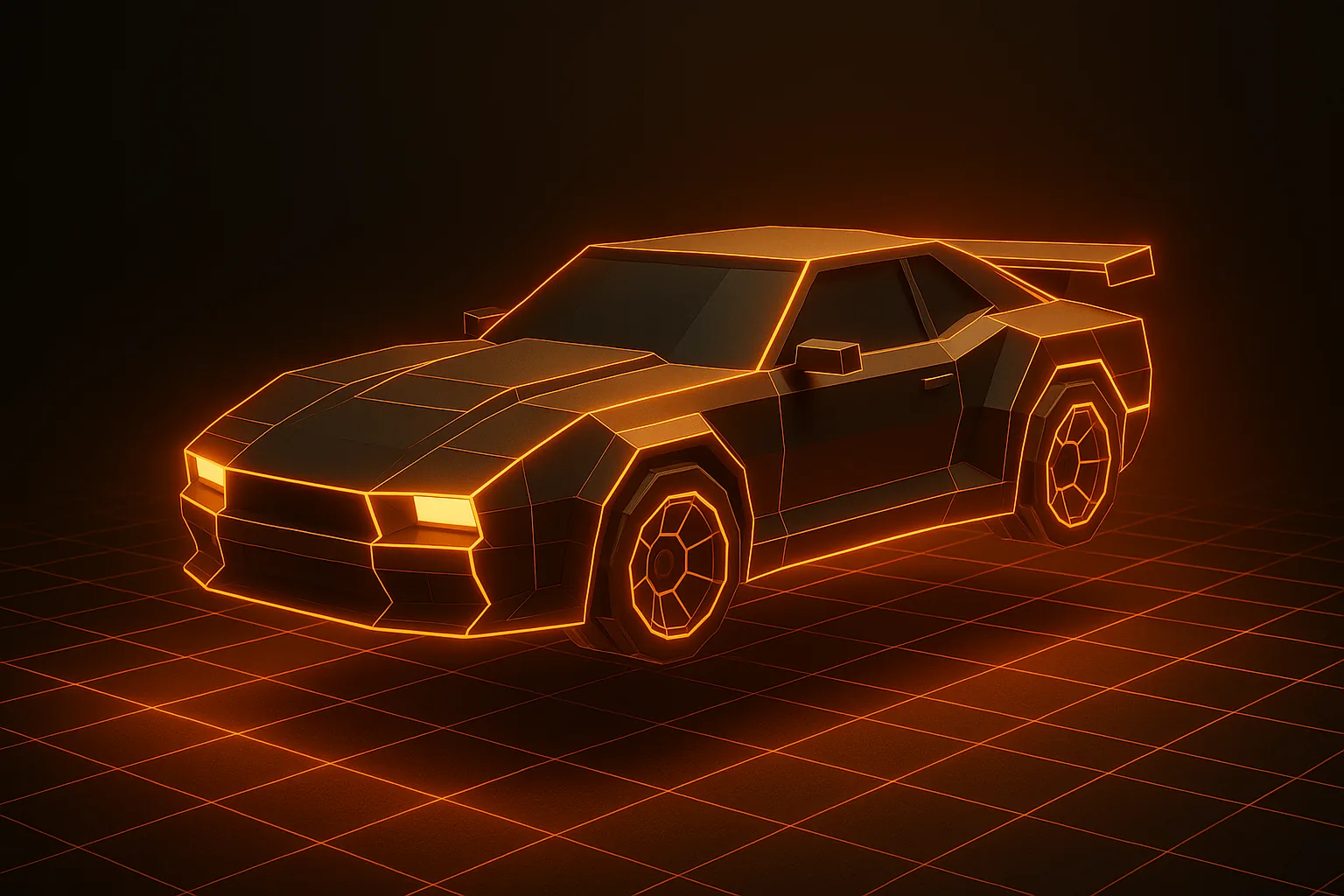
Roblox is no longer just blocky avatars. Modern experiences feature detailed vehicles, realistic props, and full PBR materials — all assembled in Roblox Studio using MeshParts. The bottleneck has always been content: where do you get good 3D assets without a modeling team?
AI generators are now the fastest way in. Snap a photo, generate a GLB, import it as a MeshPart, and you're playable inside Studio in a few minutes.
What Roblox Studio Accepts
Roblox Studio imports both FBX and GLB through the 3D Importer (Avatar → Import 3D). GLB is the recommended path because it bundles geometry, UVs, and PBR textures in a single file — exactly what modern AI generators output. Each imported mesh becomes a MeshPart with its own CollisionFidelity, RenderFidelity, and SurfaceAppearance settings.
For a deeper background on the format itself, see our guide on converting a photo to a 3D model.
Workflow: Photo to MeshPart
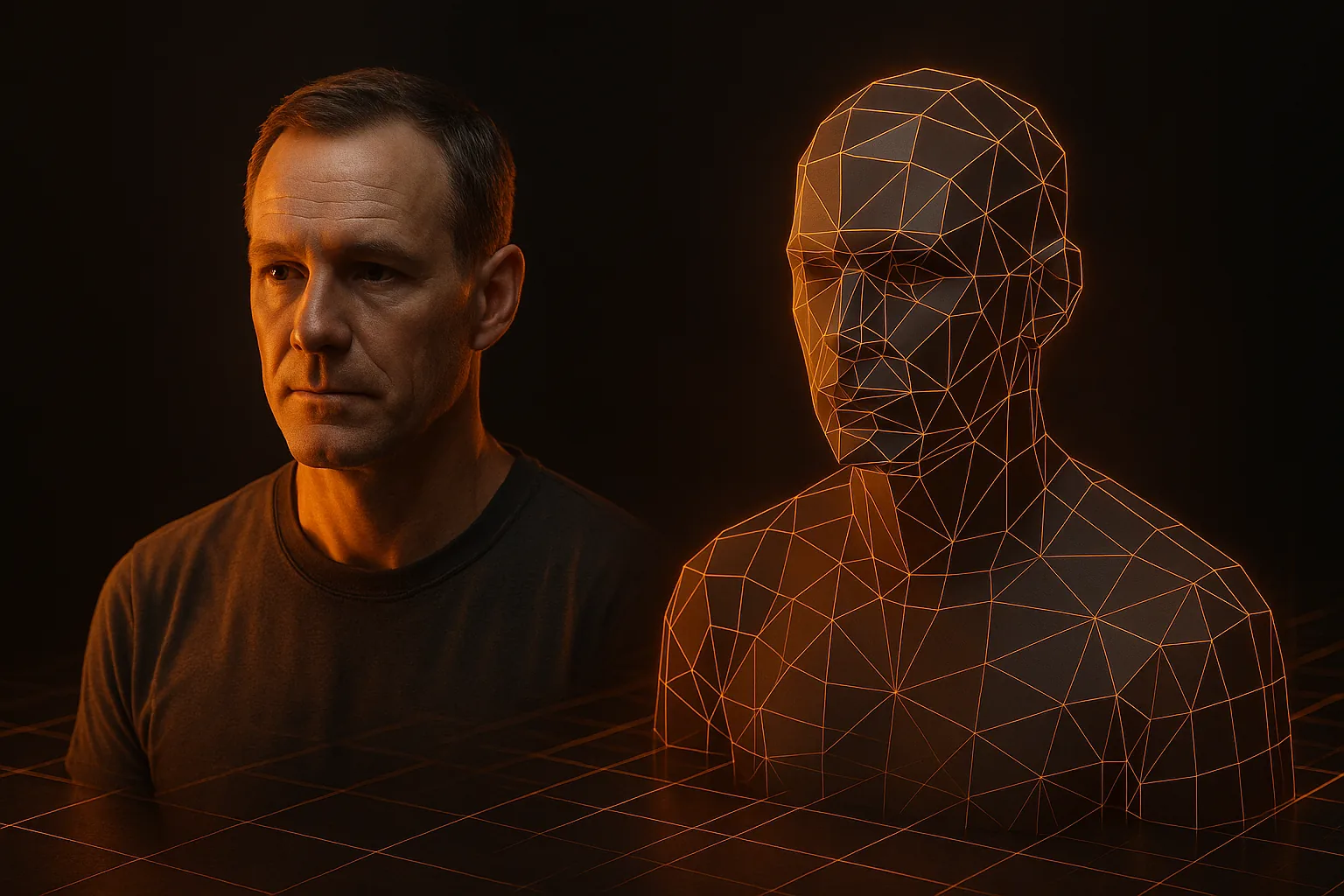
- Generate the GLB on HiGen3D from a clean photo of your object.
- Open Roblox Studio and click Avatar → Import 3D.
- Select the .glb file. Studio shows a preview with a warning panel for any constraint violations.
- Insert into the workspace. The mesh appears as a MeshPart inside a Model.
Asset Constraints You Need to Know
- Triangle limit — roughly 21,000 triangles per MeshPart. If the AI gives you a denser mesh, split it or decimate before import.
- Texture size — free accounts cap at 1024×1024. Premium uploads can go higher, but 1024 is the safe default for most experiences.
- Bounding box — 2048×2048×2048 studs maximum per MeshPart.
- File size — keep individual mesh files under a few MB for fast streaming.
If your AI output blows past the triangle budget, our mobile optimization guide covers the same decimation tricks Roblox creators use.
Collision Setup
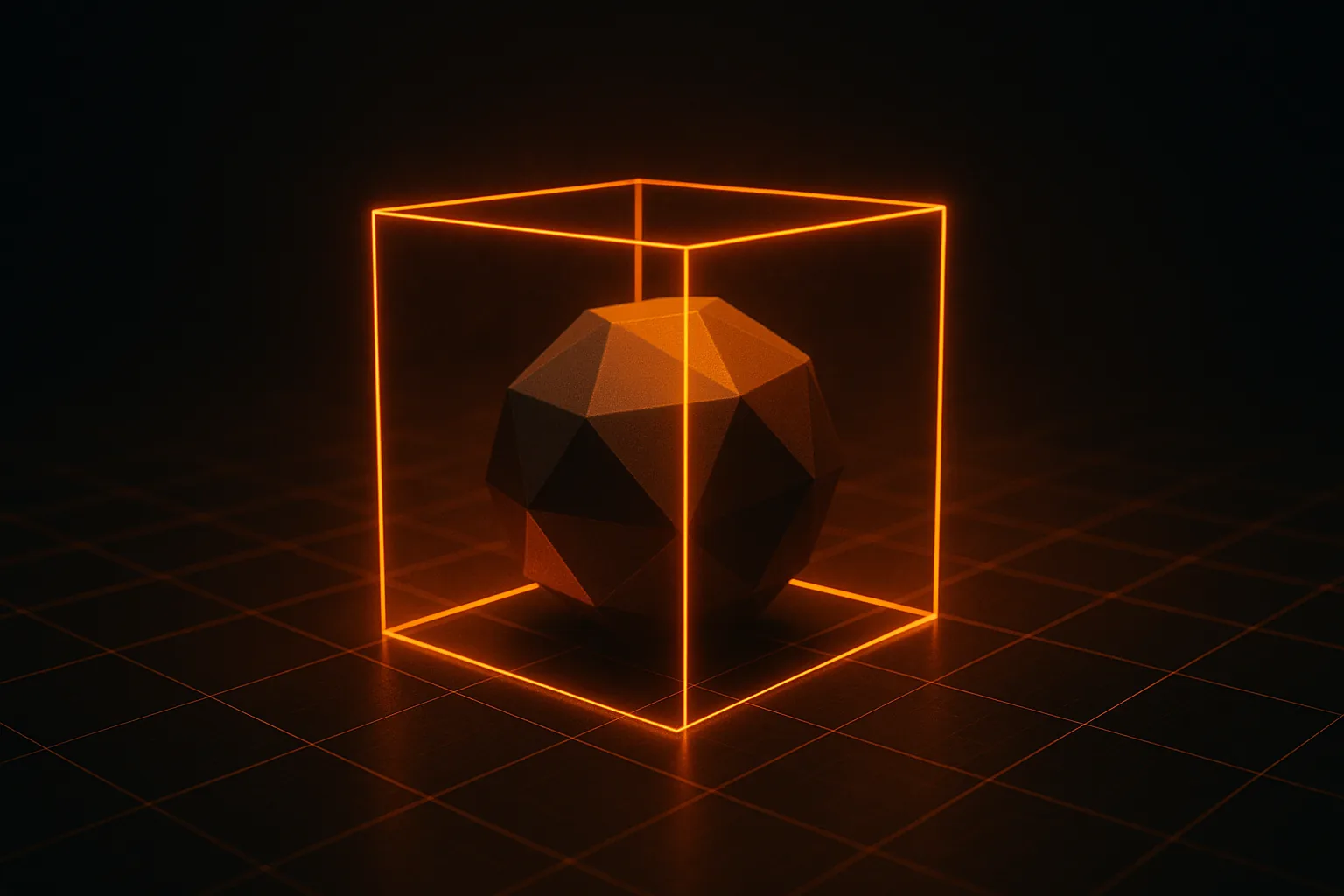
Every MeshPart has a CollisionFidelity property. Pick wrong and players will fall through the floor or get stuck on invisible walls.
- Box — fastest, use for simple props the player can't interact with closely.
- Hull — convex approximation, ideal for vehicles, boulders, furniture.
- Default — convex decomposition, more accurate but heavier; good for complex shapes.
- PreciseConvexDecomposition — closest to the visual mesh, save it for hero assets only.
Start with Hull. If collisions feel wrong, step up to Default.
Materials with SurfaceAppearance
The base MeshPart material is fine for flat-shaded looks, but AI-generated GLBs ship with full PBR maps. To use them, add a SurfaceAppearance child object and assign the textures: ColorMap (albedo), NormalMap, MetalnessMap, and RoughnessMap. Set AlphaMode to Overlay so the SurfaceAppearance fully replaces the base color.
If PBR maps are new to you, read PBR textures explained first — it covers what each channel does.
Publishing to the Marketplace
Right-click the MeshPart → Save to Roblox. Fill in name, description, and tags. Roblox runs moderation (usually under an hour). Once approved, the asset gets a public AssetId you can insert into any experience or sell on the Marketplace. Be sure the underlying photo is yours or properly licensed.
Common Errors and Fixes
- Mesh imports at wrong scale — Roblox uses studs (1 stud ≈ 0.28 m). Rescale in Studio with the Size property, or pre-scale in Blender before export. Our Blender import guide shows the unit conversion.
- Textures missing after import — make sure SurfaceAppearance is added; the base MeshPart Color won't show your AI textures.
- "Mesh too dense" error — decimate to under 21k triangles per part. Split into multiple MeshParts if needed.
- Wheels won't spin — for vehicles, each wheel must be its own MeshPart welded with a HingeConstraint. AI tools that segment wheels automatically (covered in our Unity car guide) save hours here.
Example: A Drivable Car from a Photo
Photograph a car at a 3/4 angle. Generate the GLB on HiGen3D — wheels come out as separate meshes. Import into Studio: you get five MeshParts (body + four wheels). Set CollisionFidelity to Hull on the body and Box on the wheels. Add a HingeConstraint between each wheel and the chassis. Drop a VehicleSeat inside the body, write 20 lines of Lua to read throttle and steer, and you have a drivable car. Total time: under 15 minutes.
For more on building a repeatable pipeline like this, see our indie asset pipeline article, or browse community-made models on the HiGen3D community page. Ready to try it? Generate your first Roblox-ready GLB — credit packs are listed on pricing.